Preview SpectroDraw Pro
Try out what SpectroDraw Pro has to offer.
Preview only. Recording, reproducing, or distributing is illegal.
Tools:
Brush – A circular brush that paints magnitude/phase on the spectrogram. Use brush size to control the drawn area and the sliders to adjust brightness/phase. The brush is sensitive to pressure: Increasing the mouse speed creates a narrower and lighter stroke, while decreasing the mouse speed creates a bolder stroke.
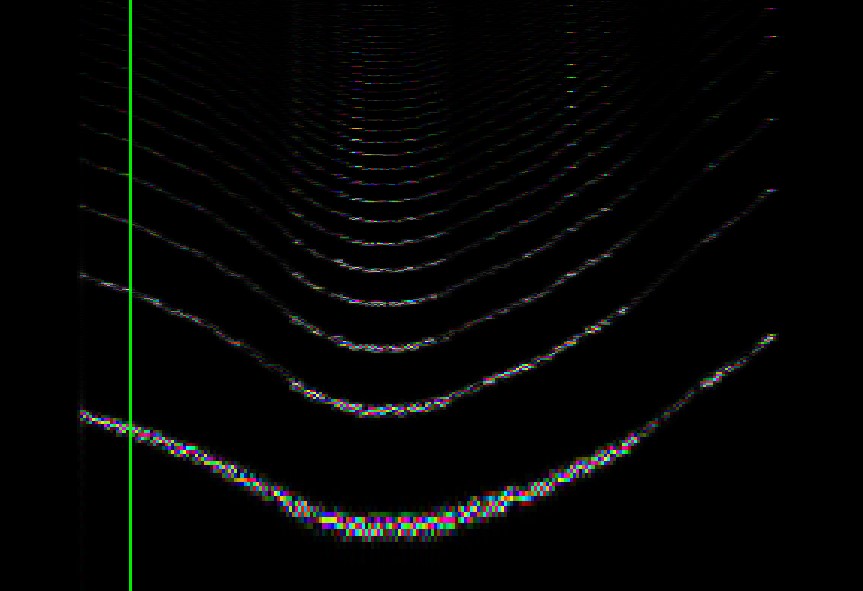
Synth Brush – A precise brush that can draw a single frequency plus its harmonics.
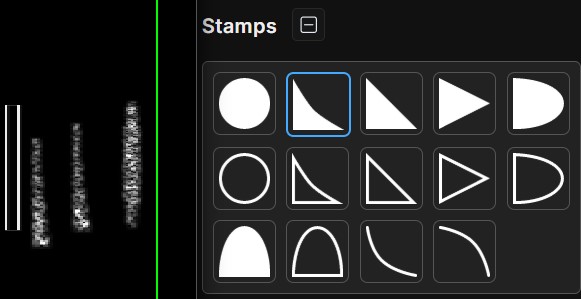
Stamp – A built-in library of images you can overlay onto the spectrogram. It works like the image overlay feature, but is faster and more convenient to use.
Rectangle – Draws a filled rectangular region across time and frequency. Rectangle size is independent of brush size.
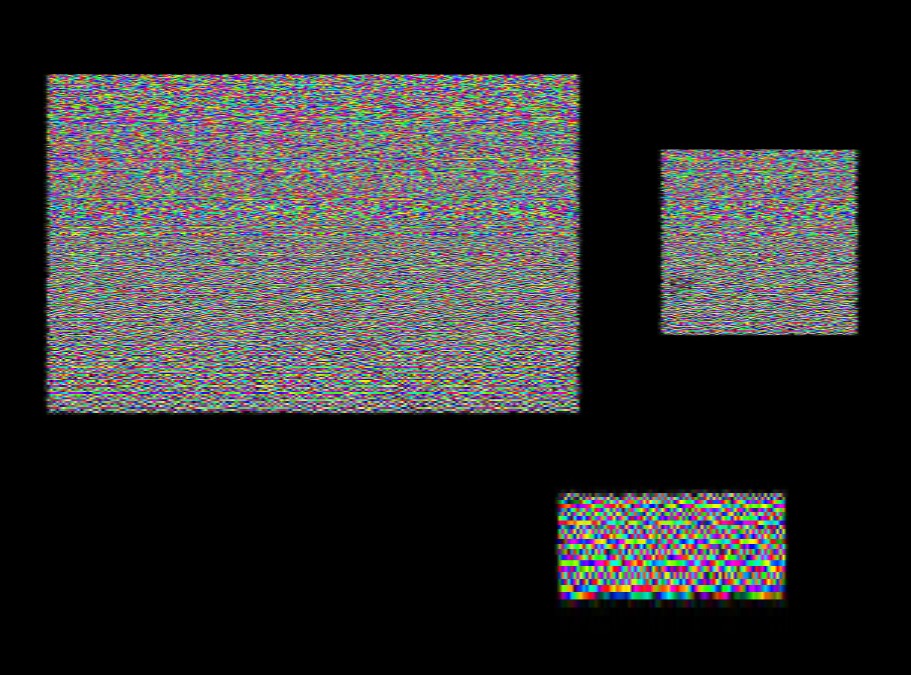
Line – Draws a line of frequencies. Use the brush size to control the line’s thickness, and adjust the harmonics to change the sound of the line.
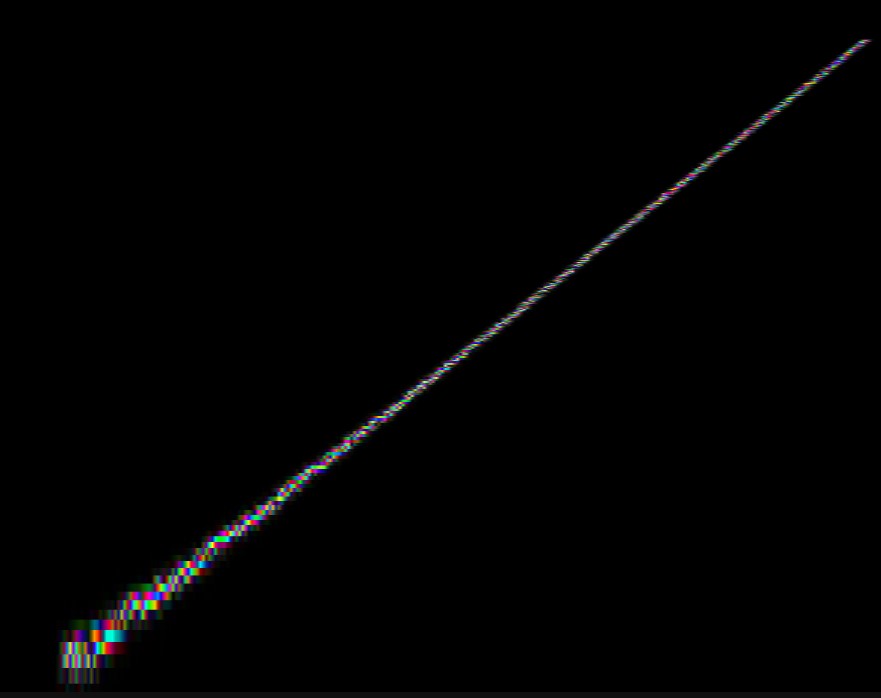
Image overlay – Stamp or drag to draw an image onto the spectrogram. Change brush size to adjust the image size. Image overlay follows opacity, phase shift and phase strength but ignores brush brightness.
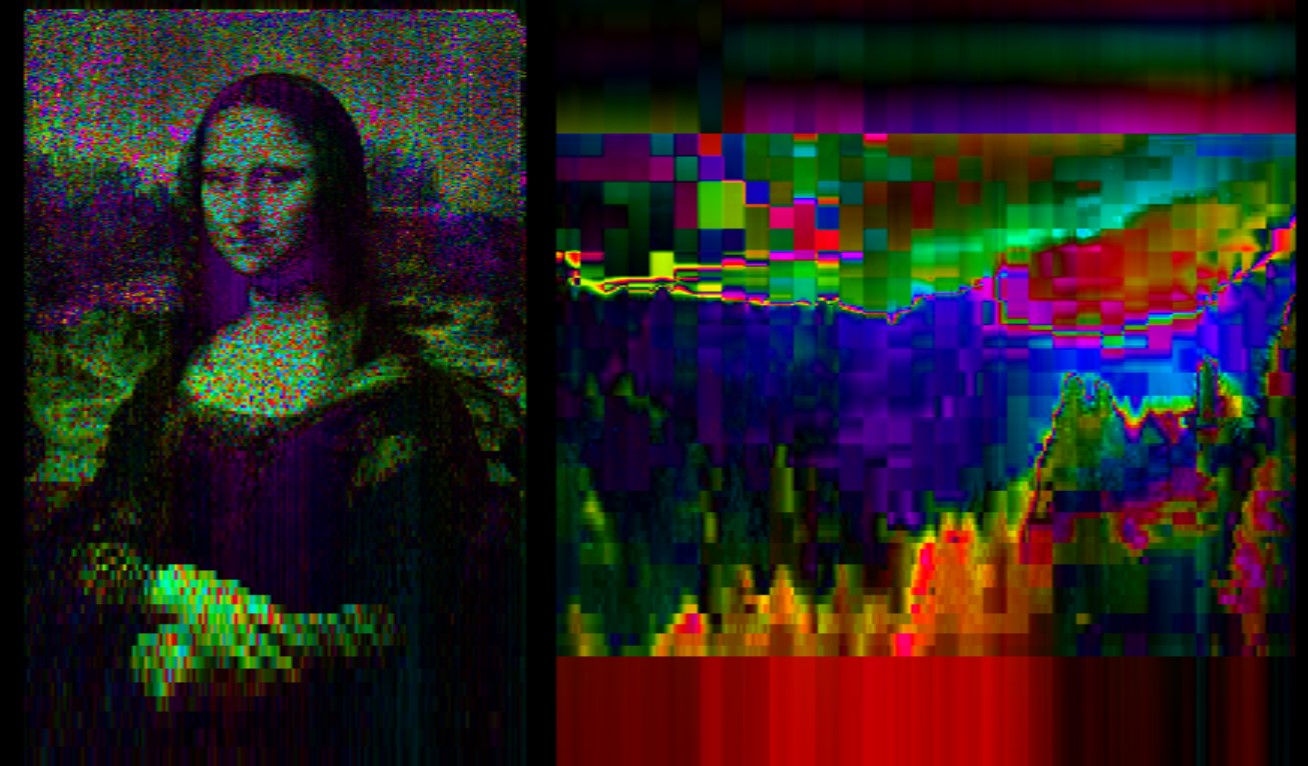
Selection – Select rectangular regions on the spectrogram and perform numerous adjustments, including adjusting phase strength and phase shift, adjusting X and Y scaling, and moving the selection around the spectrogram.
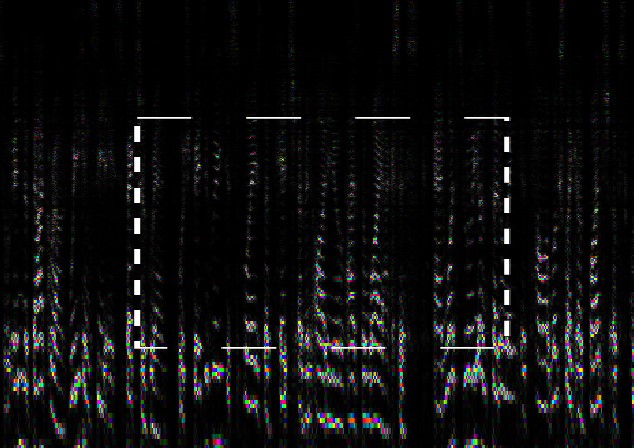
Effects:
Fill – Applies solid color to the spectrogram.
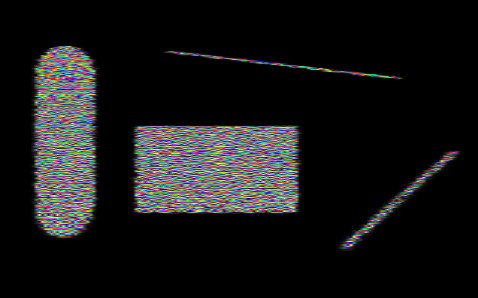
Blur – Averages magnitude/phase across a circular region to reduce precision in time and frequency. In blur mode the "Brush Brightness" slider is replaced by a "Blur Radius" slider.
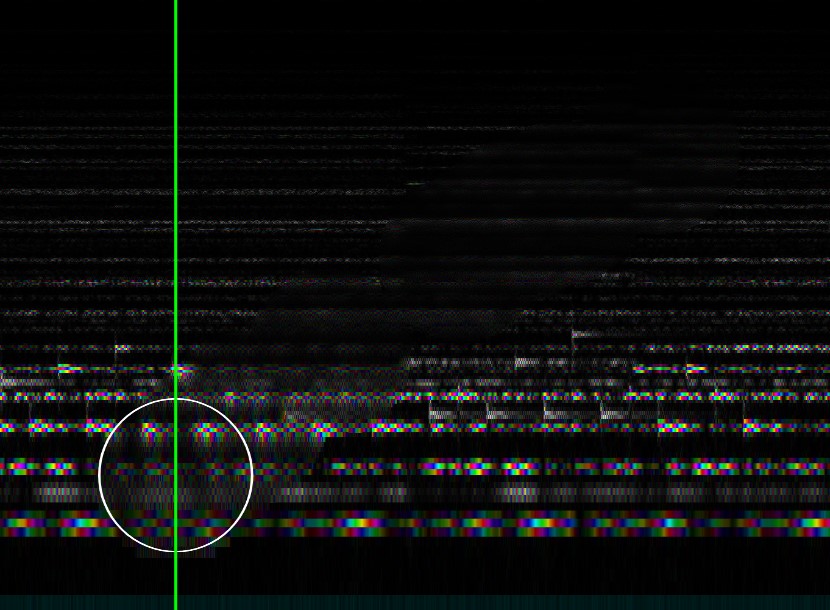
Eraser – Clears magnitude and phase data inside a circular region. Eraser ignores brush opacity/brightness and phase settings so it reliably removes data.
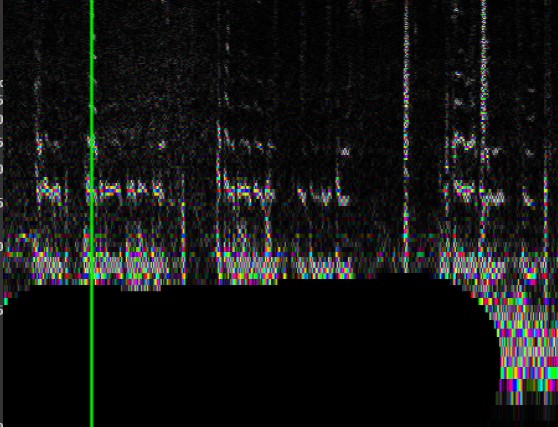
Amplify – Multiplies magnitude by a factor between 0.0 and 2.0. Phase is affected in the same way as when using the brush.
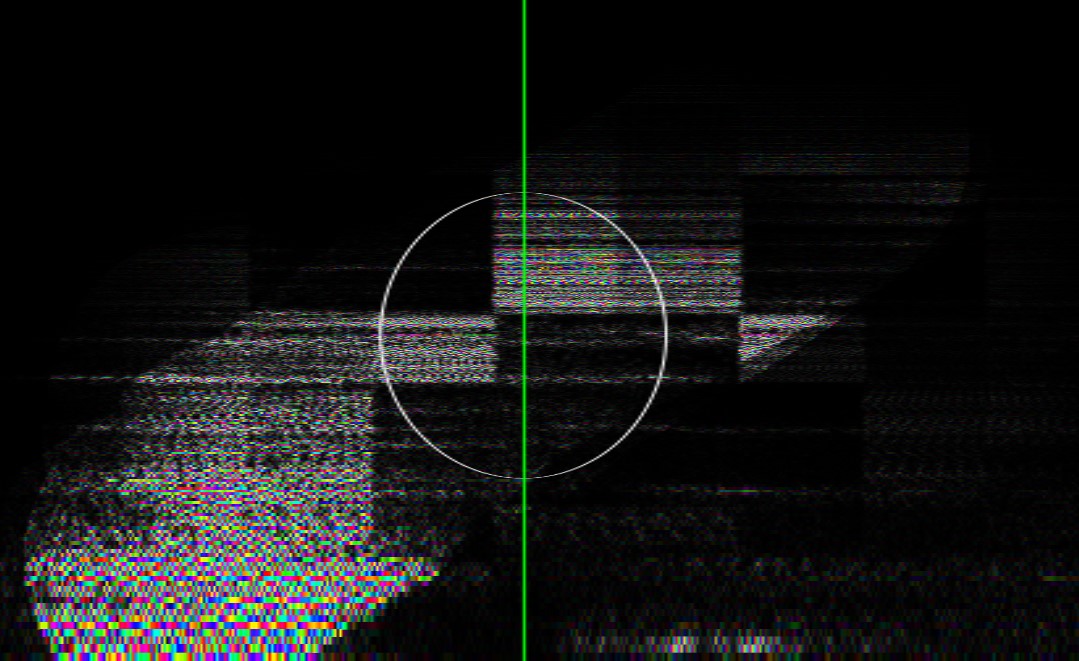

Noise Remover – Improved from the free version. Click “Set noise profile frames” to select a region that contains only noise. This region is used as a reference for accurate noise removal. Until you manually set a noise profile, it is automatically updated each time you draw on the spectrogram.
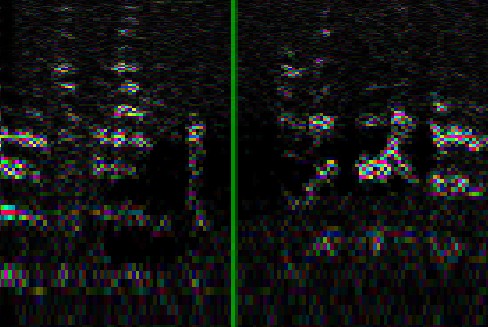
Cloner – Clones magnitudes and phases in the logscale space. The reference point is the starting point of cloning each time you begin drawing. You can change the cloner scale, amplifier, and phase strength.
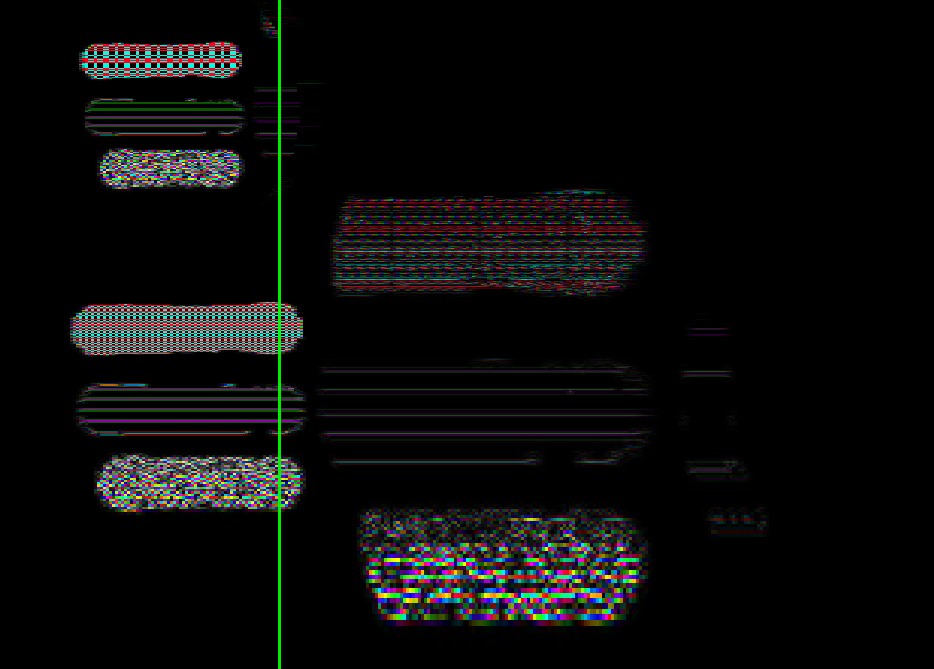
Autotune – Shift the frequencies within the affected region so their average pitch is aligned to the Base Hz and Notes per octave sliders. Adjust the autotune strength to change how much the frequencies are affected.
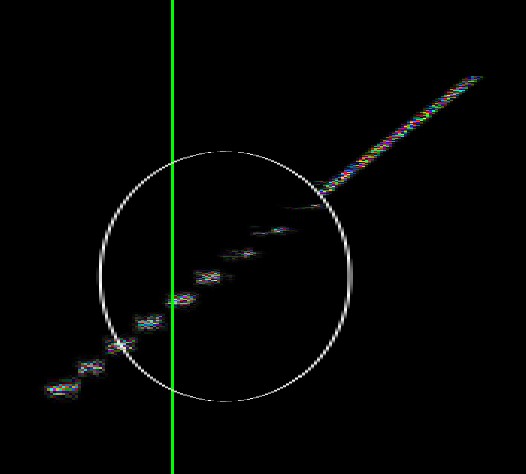
Pan
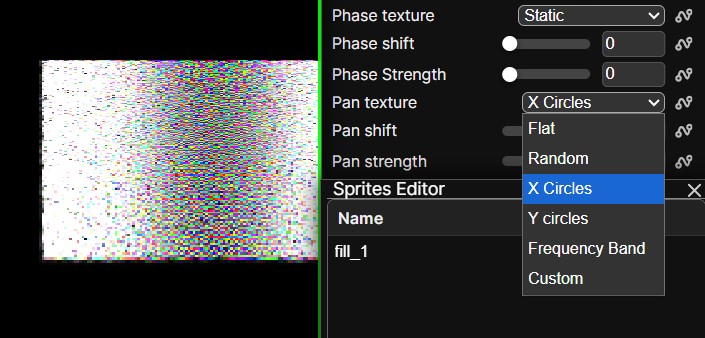
SpectroDraw Pro introduces a third dimension to the spectrogram: pan. By default, this is displayed as saturation.
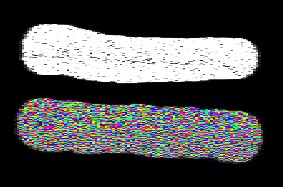
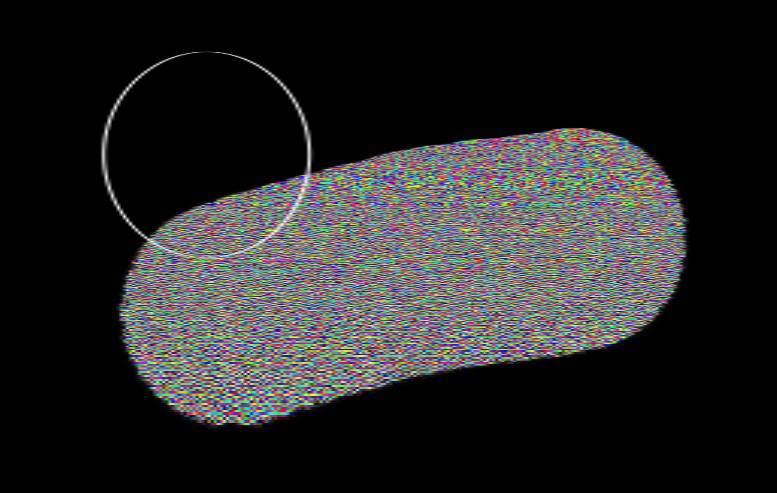
Draw with pan textures, like X Circles, to achieve cool stereo effects.
Piano mode
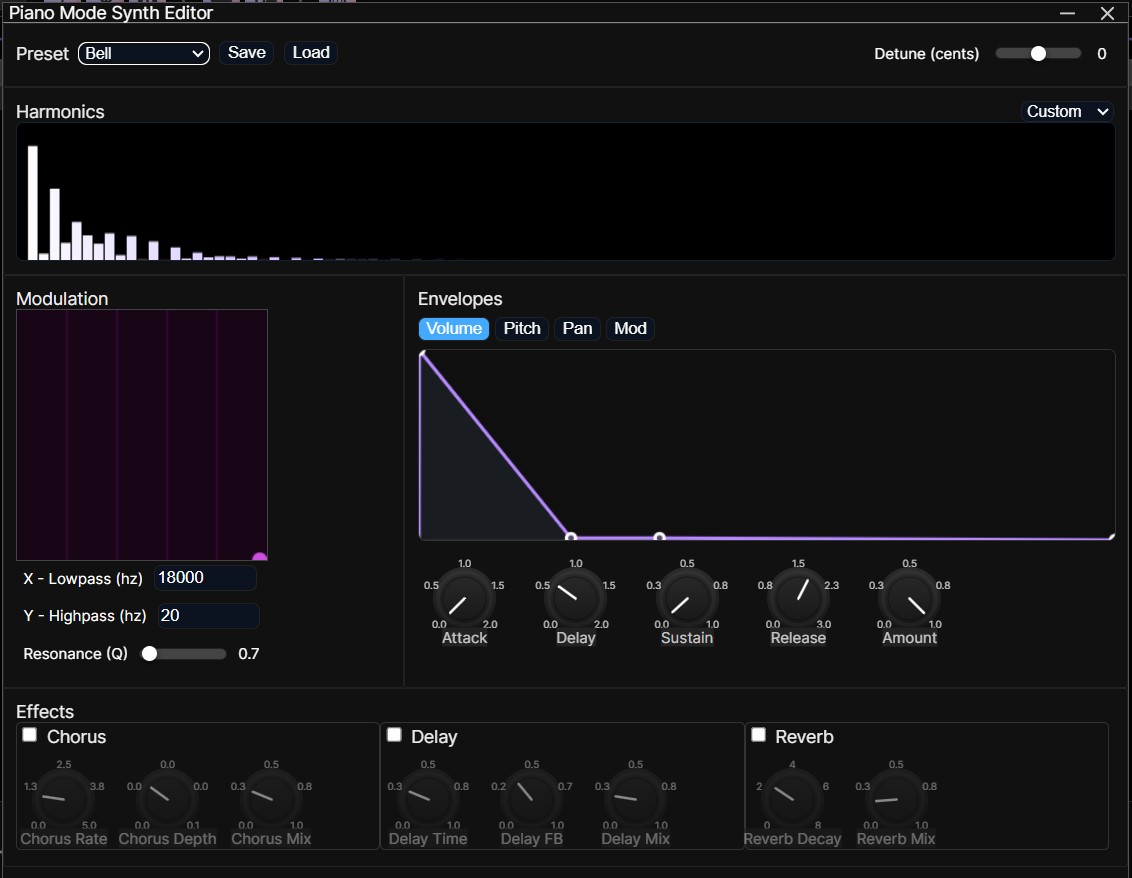
This is where you can get very creative with your sound. Instead of playing the spectrogram exactly how it is, piano mode converts it to a MIDI then plays it back with a custom synth that you can tweak.
Files
Save and Open Projects – While downloading the audio is a sufficient way to save the spectrogram, if you want to preserve sprites, channels, expressions, and more, you can save your project as a ZIP file. You can also start a new project with the preset audio by clicking "Save and start new project".
Layers
SpectroDraw supports up to 16 layers. Each layer is an individual spectrogram with its own adjustable zoom, log scale, and speaker.
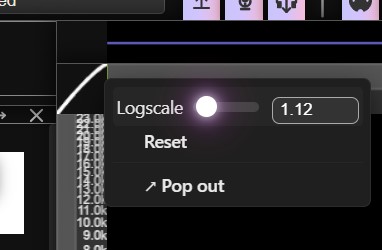
Adjustable log scale - Adjust the visual height of all layers. Note: There is a vertical scroll bar on the right of the spectrograms if the layers go off screen.
Layer height - Adjust the visual height of all layers. Note: There is a vertical scroll bar on the right of the spectrograms if the layers go off screen.
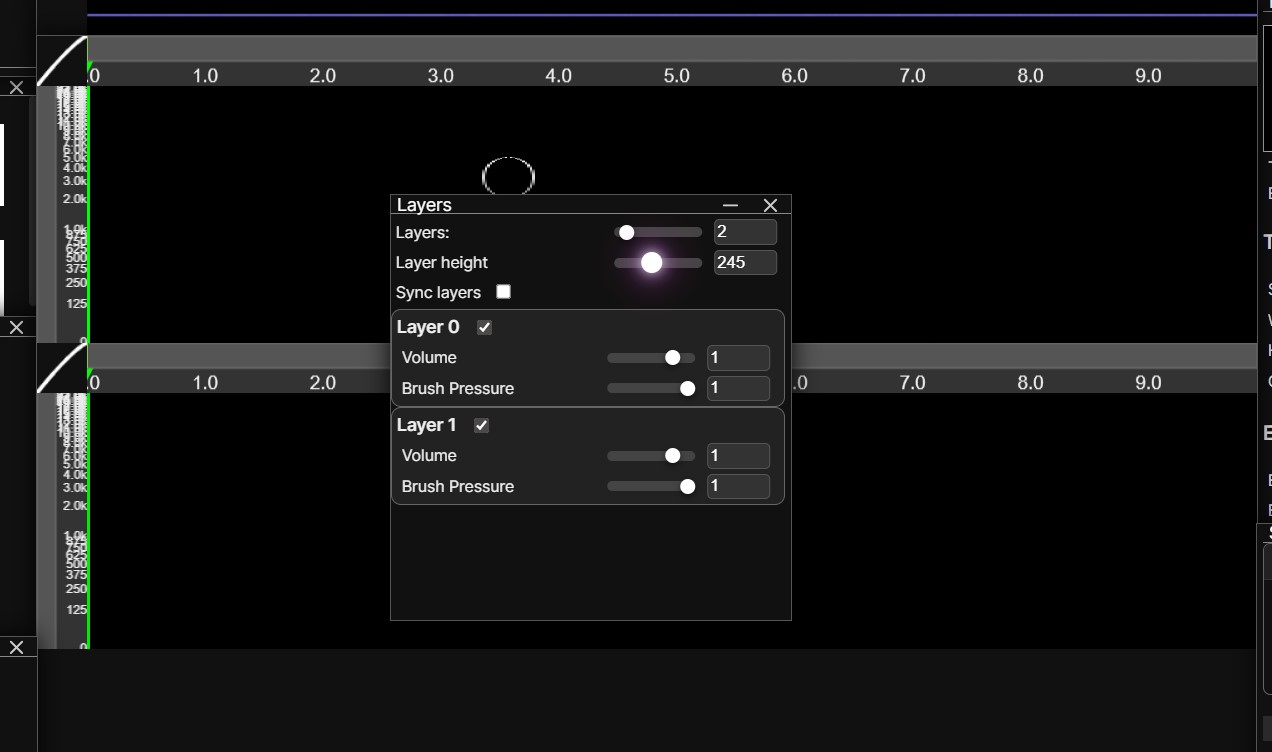
Sync layers - When this is checked, you will edit all layers simultaneously.
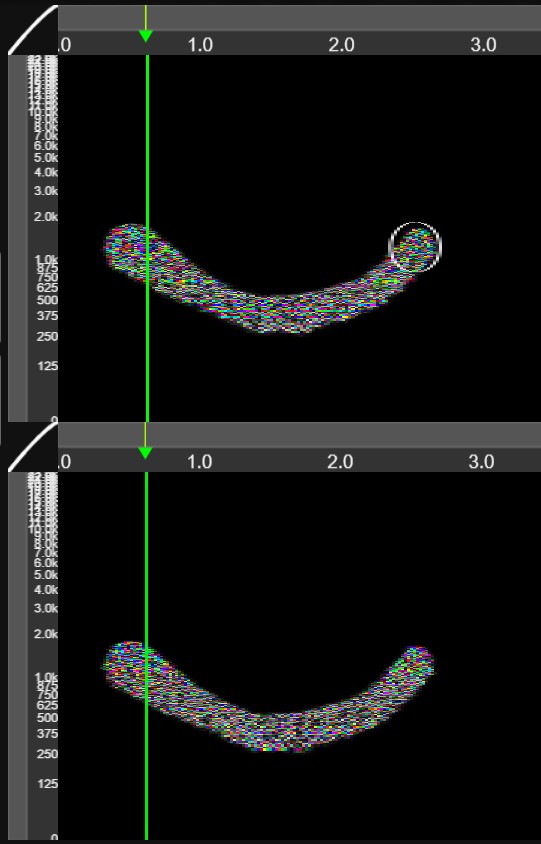
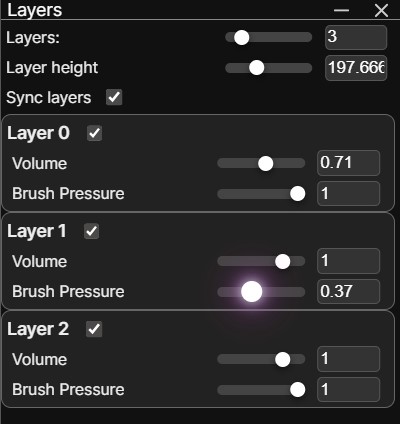
Layer settings - Disable/enable to mute/unmute the layer, or adjust the volume slider. The brush pressure affects the brush opacity when drawing on the particular layer. This feature is useful with sync layers as you can draw the same thing on different layers with different volumes.
Uploads
Layers - Copies of each layer are kept and automatically updated so you can copy them over to other layers.
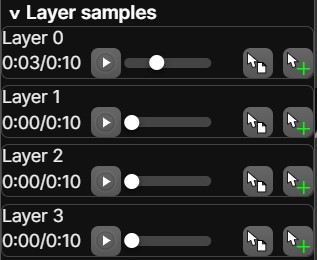
Upload samples - Use the upload box to upload your own audio samples. Delete uploads by clicking the ... button and clicking delete.
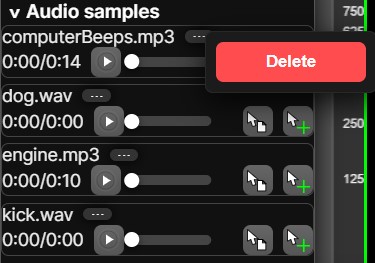
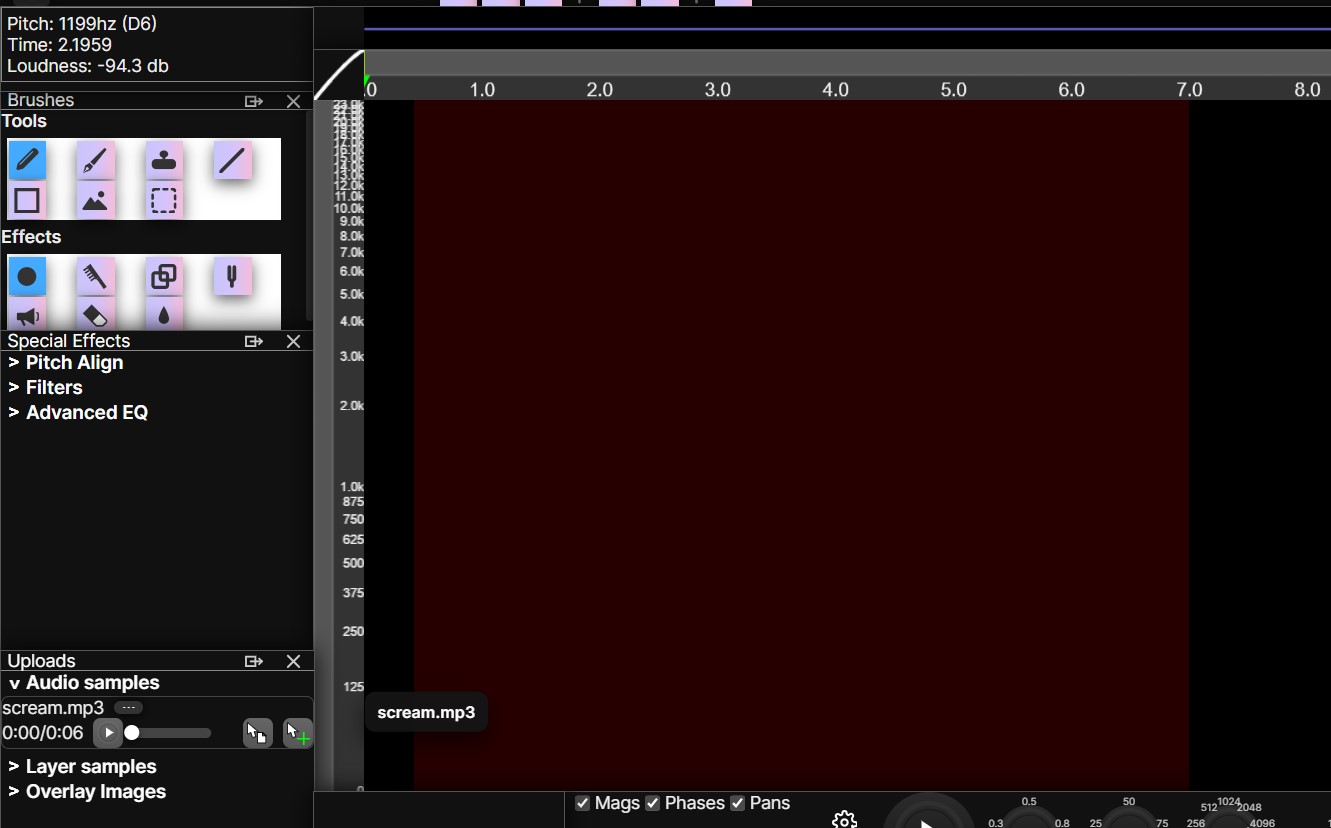
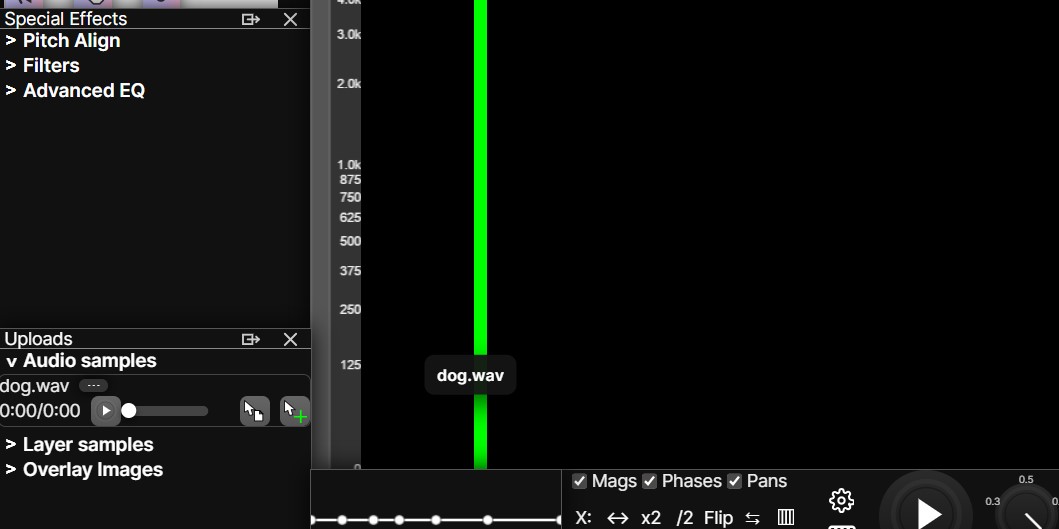
Insertion / replacement into the spectrogram - click on either the replace or insert button to the right of each audio sample and drag it onto the spectrogram. Release your mouse on the spectrogram to apply, or to the left of the spectrogram to cancel. The insert feature inserts the sample at the cursor position, adding to the buffer length; while the replace feature overwrites the spectrogram. Both will create a new sprite, which you can move around, adjust amplitude, and shift phase. When "sync layers" is checked and there is more than one layer, it will attempt to insert all channels of a particular sample onto the multi-layer spectrogram.
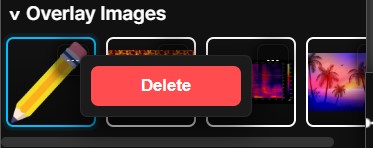
Images - Overlay images are stored here. Upload more images using the same upload box. While using the image overlay tool, you can switch between different images in the image gallery. Delete images by clicking the ... button and clicking delete
Expressions
Most brush settings now support JavaScript expressions, allowing you to use any value or variable from the app. This is useful for automation: For example, creating time-based gradients using a pixel’s X position, or frequency-based gradients using its Y position. The editor also supports Ctrl+F (find) and Ctrl+H (replace).
See documentation here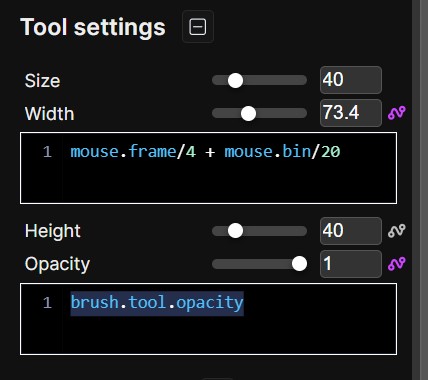
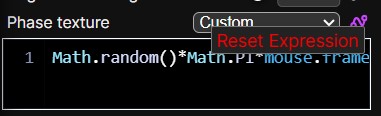
Reset expression - Right click the squiggle and click "Reset expression" to reset the expression.
Sprites
A sprite is created for each action on the spectrogram. Pressing undo (or redo) disables (or disables) the last sprite.
Move sprite - Move the sprite around the spectrogram in log scale space. You can also move it across layers. Warning: The sprite will be cropped if you move it off the screen.
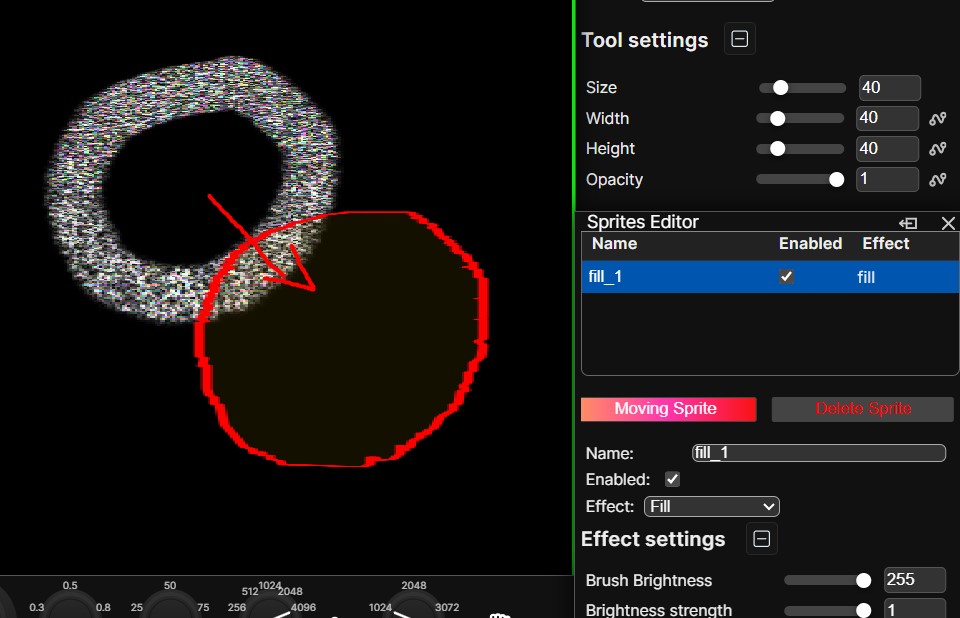
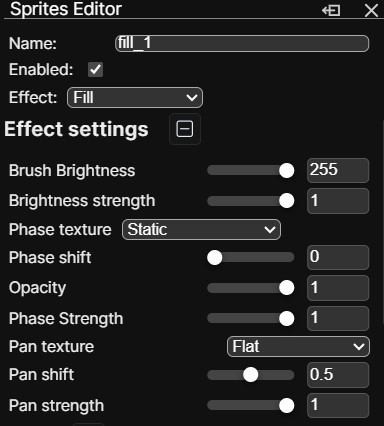
Edit sprite effect - Change the sprite's effect (fill, noise remover, autotune, amplifier, eraser, blur) and modify all effect settings. The changes will apply to the region of the sprite's shape.
Edit sprite fade - Adjust the fade window of the sprite by moving the points on the curve and adjusting tangent lines.
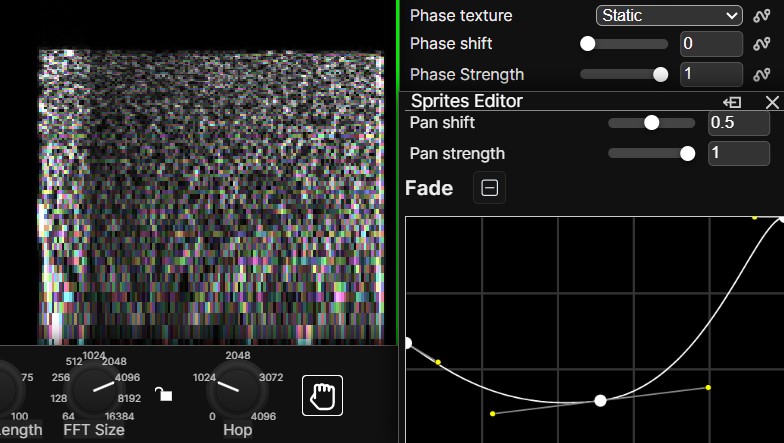
Phase Texturing
Default silence - On startup SpectroDraw adds a tiny static buffer so the canvas isn't perfectly silent. This small amount of static prevents phase interference when you first draw with zero phase strength, so you can hear results immediately.
Phase strength - Controls how strongly the phase texture influences drawn audio.
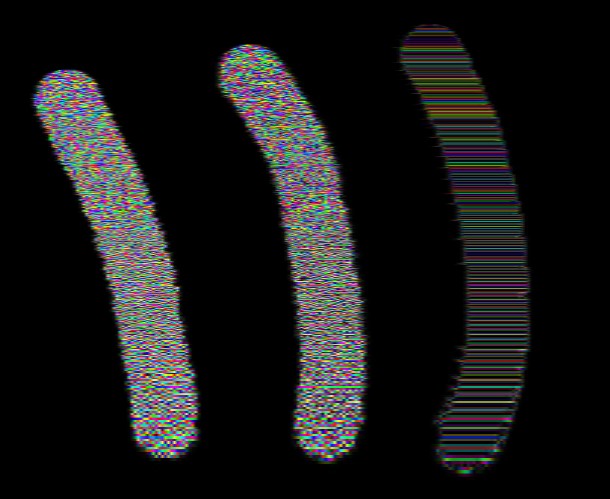
A brush drawn on the default silence with phase strength at 0, 50, and 100
Phase texture - If you've ever tried recreating a sound effect in SpectroDraw, you've likely had the question: How come my spectrogram looks the same, but sounds completely different? The answer is likely that the phase texturing was different. A crucial but often overlooked part of spectrograms, phase texturing significantly changes the way your drawings sound. The basic version offers thirteen phase textures, including harmonics, static, and flat (shown below).
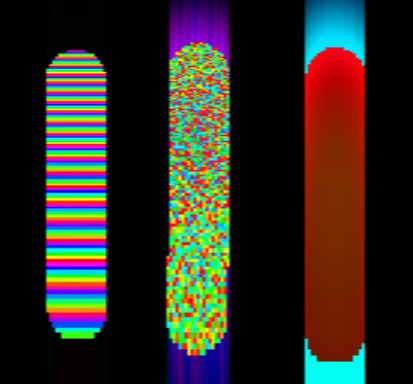
Harmonics, static, and flat phase textures drawn at pitch & time resolution 1024
Piano Tools
Auto align pitch - When enabled, edits snap to specific frequencies based on your notes-per-octave and base Hz settings, so drawn notes stay in-tune. You can also switch between different keys, or manually enable/disable notes on the note wheel.
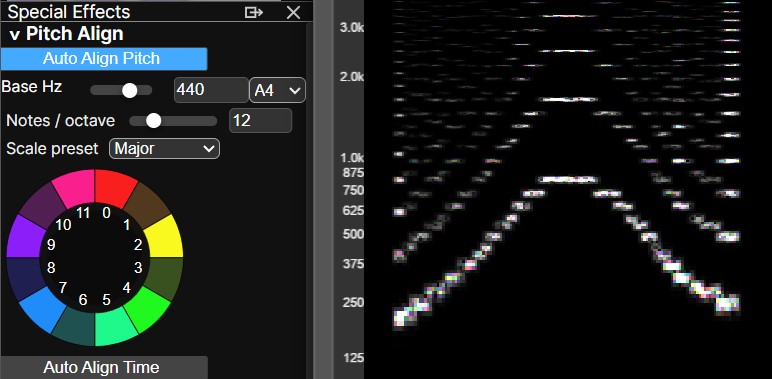
Auto align time - Snaps brushes, rectangles, and lines to an adjustable tempo grid. Beat division updates as you zoom in/out.
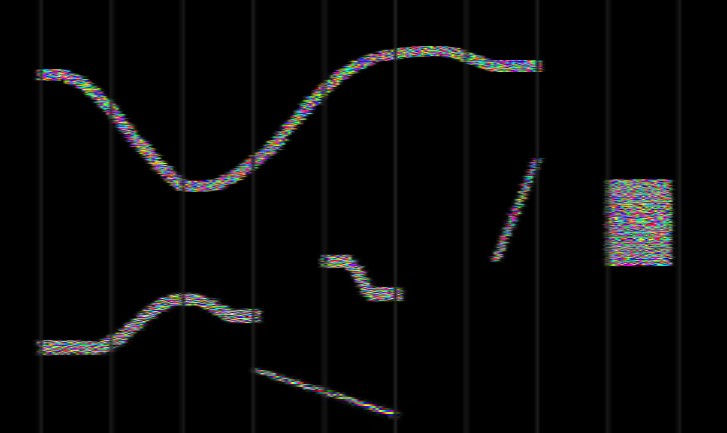
Remove harmonics - Removes harmonic overtones within a region, leaving the fundamental frequencies. Handy for cleaning up muddy or overtone-heavy material.
Export MIDI with BasicPitch AI - BasicPitch is an open-source model that converts audio to MIDI and supports polyphonic detection. Great for approximating MIDI from songs, but it can make errors.
Export MIDI without BasicPitch AI - A heuristic-based MIDI export useful for short sounds and SFX; it provides adjustable heuristics (beat, duration, noise filtering) but is generally less accurate than BasicPitch.
Equalizer
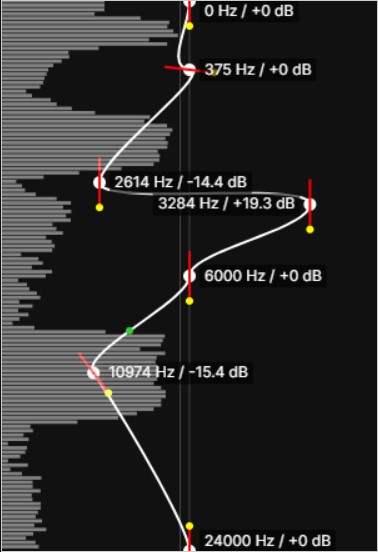
Adjust loudness across frequencies in real time. The equalizer is an effect pass applied to playback and to exported audio — it doesn't actually affect the spectrogram itself. This is to save the lag of having to re-compute the spectrogram every time a point is changed. You can add or remove points by right-clicking, and adjust tangents lines to achieve unique curve shapes.